
How to use the MLC LLM Chatbot on your macOS

The age of Artificial Intelligence (AI) is upon us, offering unprecedented computational power and convenience. One such exciting development is the locally-hosted AI chatbot, the MLC LLM chat app, now available on your Mac. This game-changing tool has the potential to save hours of research and significantly accelerate your work process.
Understanding the AI revolution
Chatbots, applications powered by AI that you can interact with, are seeing a meteoric rise in popularity. OpenAI’s ChatGPT, for example, has the ability to deliver expert-level insights on a vast array of topics, providing real-time responses that would traditionally require hours, if not days, of research. Like any technology, AI applications have their drawbacks, namely occasional inaccuracies. To address this, software developers are employing “copilots,” specialized chatbots that can generate code outlines for further verification by human developers.
Getting acquainted with chatbot fundamentals
To fully grasp how chatbots function, it’s crucial to understand the concepts of Machine Learning (ML) and Large Language Models (LLMs). ML is a discipline that aims to teach computers to learn independently, while an LLM utilizes large datasets and neural networks to generate text. By training an LLM on extensive data models, it “learns” over time, gradually becoming a domain expert in a particular field. This learning process allows chatbots to provide prompt, accurate responses to user queries.
Unleashing the power of Generative AI
More recently, some LLMs have begun to display the ability to generate non-text-based data, such as graphics, music, and even entire books. This capability, known as Generative AI, is attracting the interest of corporations seeking to produce elements like company graphics, logos, titles, and even digital movie scenes.
The age of the chatbot assistant
The world witnessed the release of its first commercially available chatbot, BeBot, in 2019. This chatbot, launched by Bespoke Japan for Tokyo Station City, was made available as an iOS and Android app, and was capable of providing real-time information about train times, ground transportation, food outlets, shops, and more.
Introduction to the MLC chat app
The Machine Learning Compilation (MLC) project, initiated by Apache Foundation Deep Learning researcher Siyuan Feng, alongside Hongyi Jin and others based in Seattle and Shanghai, aims to bring precompiled LLMs and chatbots to consumer devices and web browsers. By harnessing the power of consumer graphics processing units (GPUs), MLC is making AI accessible to most modern consumer computing devices.
Getting started with MLC
To run MLC on your device, you must first ensure that your device meets the minimum requirements specified on the project’s GitHub pages. For iPhones, you will require an iPhone 14 Pro Max, iPhone 14 Pro, or iPhone 12 Pro with a minimum of 6GB of free RAM. The app is also available on certain iPads.
Setting up MLC chatbot on macOS
To set up the MLC chatbot on your Mac, you need to meet specific requirements and follow the steps below:
- Ensure your Mac meets the minimum requirements: For the MLC chatbot to run effectively, your Mac must have the minimum specifications detailed on the project and GitHub pages.
- Install required software and libraries: For macOS users, you need to install the Conda or Miniconda Package Manager, Homebrew, and git large file support (LFS).
- Download MLC libraries from GitHub: Navigate to the MLC-LLM GitHub page using the following link: https://github.com/mlc-ai/mlc-llm.git. You will need to have git installed on your Mac to clone the MLC sources into a designated folder on your machine.
- Install the command-line chat app from Conda: Once you’ve cloned the MLC libraries, install the command-line chat app using Conda.
- Download the LLM model weights and set a LOCAL_ID variable: The model weights for the MLC chatbot are obtained from the HuggingFace community website.
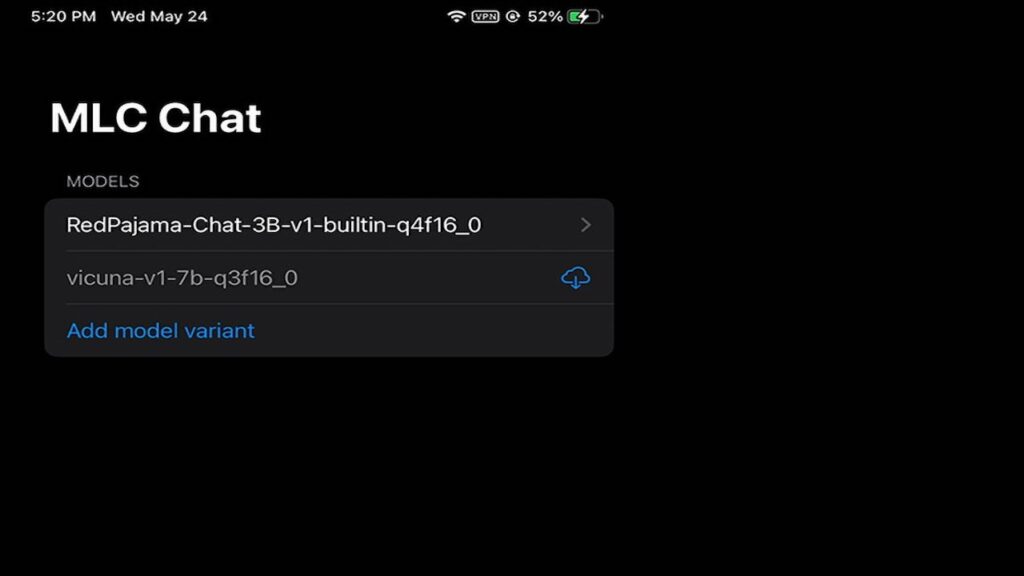
Once you’ve installed the necessary software and downloaded the MLC libraries and model weights, you can launch the MLC chatbot in Terminal using the command ‘mlc_chat_cli‘.
Utilizing MLC in web browsers
The MLC project includes a web version called Web LLM, specifically designed for Apple Silicon Macs. This variant allows you to harness the power of the MLC chatbot directly from your web browser.
The dawn of AI-driven intelligent assistants is upon us. Despite the potential risks associated with AI, this revolutionary technology promises to significantly enhance our future by saving enormous amounts of time and reducing labor-intensive tasks. We invite you to share your thoughts on this exciting new era of AI-powered communication.
Your comment has been submitted,
it will be published after approval.