
Turn Your Old Smartphone Into a Wireless Android Auto Display

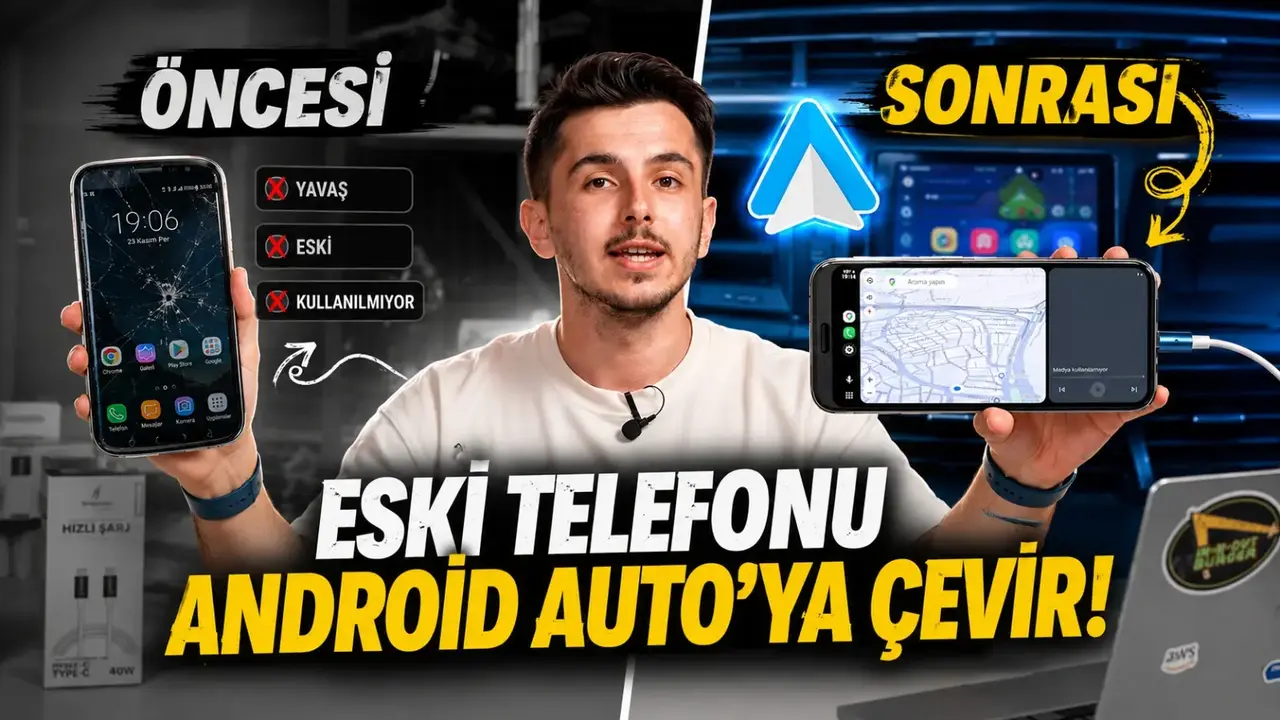
Do you have an old Android device collecting dust in a drawer? You can easily repurpose your retired smartphone into a functional wireless Android Auto display, eliminating the need to invest in expensive new car multimedia hardware. By utilizing specific emulator software and connectivity settings, drivers can transform a secondary handset into a dedicated dashboard screen for navigation, music streaming, and communication. This DIY approach allows users to access advanced automotive features on their existing vehicle head units without additional complex installations. The process involves configuring two devices to communicate seamlessly, providing a budget-friendly solution for modernizing older car interiors.
- Users can repurpose inactive Android devices to serve as secondary wireless Android Auto interfaces.
- The installation requires the Headunit Reloaded Emulator application on the secondary device and the WiFi Launcher app on the primary handset.
- Performance stability can be optimized by adjusting pixel density and graphic settings within the emulation software.
- A direct Bluetooth and Wi-Fi hotspot connection facilitates the data link between the two mobile devices.
Secondary Devices Need Proper Preparation
Before initiating the software configuration, both Android devices must be synchronized via Bluetooth. Once paired, the device designated to act as the primary display requires the secondary phone to share its internet connection through a mobile hotspot. By connecting the main handset to this dedicated Wi-Fi network, the two devices establish the necessary handshake for wireless data transmission. This foundational step ensures that the Android Auto interface can mirror the primary device’s output to the secondary screen without requiring a physical USB connection for every drive.
A stable Wi-Fi connection serves as the backbone for a lag-free Android Auto experience.
Required Applications Are Essential for Functionality
To enable the communication between the primary and secondary hardware, specific third-party applications are required. The secondary handset, which will be mounted in the vehicle, must have the Headunit Reloaded Emulator (HUR) installed. Meanwhile, the primary phone running the Android Auto service requires the WiFi Launcher application to automate the connection process. While these tools enable a seamless wireless experience, users who prefer a traditional wired setup may bypass the WiFi Launcher application, using a standard USB cable instead.
Display Settings Can Be Optimized for Stability
Once the initial connection is established, users may need to fine-tune the display output to ensure the interface appears correctly on the chosen screen. The Headunit Reloaded settings menu provides extensive control over graphic output, including color profiles, icon scaling, and screen alignment. If the display exhibits stuttering, black screens, or input delays, the user should consider reducing the pixel density settings. Lowering this value often results in a more responsive and stable performance, particularly on older devices with lower processing power. Adjusting these parameters allows for a customized experience that matches the specific dimensions and resolution of the secondary phone’s screen.
Proper graphic adjustments significantly improve the responsiveness of your repurposed display.
Have you successfully transformed your old smartphone into a car dashboard display, or do you have tips for mounting devices in the vehicle? Share your experiences and setup configurations in the comments section below to help other tech enthusiasts upgrade their commute.
Your comment has been submitted,
it will be published after approval.