
How to Fix the 0xc000007b Error in Windows

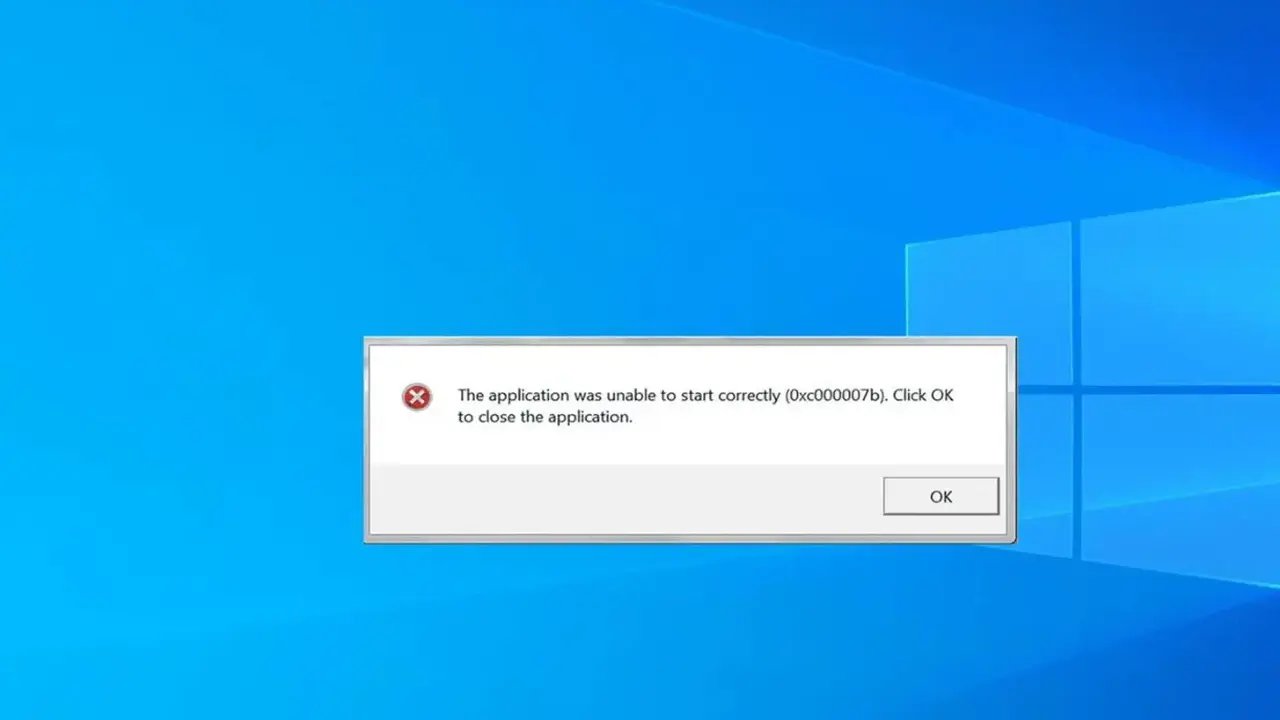
The 0xc000007b error is a persistent system notification encountered by Windows users worldwide, typically appearing when an application or video game fails to launch correctly. This technical malfunction often indicates a conflict between 32-bit and 64-bit architecture within the operating system, or it may point toward missing or corrupted critical components such as Microsoft Visual C++, DirectX, or .NET framework files. Whether you are a casual gamer or a professional user, encountering this specific stop code can be frustrating, yet it is often resolvable through systematic troubleshooting steps designed to restore file integrity and software compatibility.
- The 0xc000007b error usually stems from corrupted DLL files or an incompatibility between 32-bit and 64-bit system environments.
- Updating Microsoft Visual C++ redistributables and DirectX runtime libraries resolves a significant portion of application launch failures.
- Running the System File Checker tool in the Windows Command Prompt identifies and repairs damaged system-level files.
- Performing a clean reinstallation of the problematic software ensures that all necessary dependencies are correctly configured.
The Common Causes of 0xc000007b Are Identified
Understanding why this error occurs is the first step toward a permanent fix. Most frequently, the root cause involves corrupted Dynamic Link Library (DLL) files that the application relies upon to communicate with the Windows operating system. In other instances, a mismatch in system architecture—such as attempting to run a 32-bit application using 64-bit system files—triggers the error code. Furthermore, outdated display drivers and incomplete software installations contribute to the instability that leads to the 0xc000007b prompt.
Basic Troubleshooting Steps Are Executed
Before diving into complex technical configurations, users should attempt basic recovery methods. Restarting the computer is an effective initial measure, as it clears temporary system cache and resolves minor background process conflicts that might interfere with software startup. If the issue persists, users should consider uninstalling and then performing a clean reinstallation of the specific program.  It is essential to download software exclusively from official, trusted sources to ensure that all required installation packages are intact and free from corruption.
System Components Are Thoroughly Updated
In many cases, the absence of up-to-date Microsoft Visual C++ redistributable packages prevents modern software from executing. These packages contain the libraries necessary for applications to run smoothly on Windows environments. Users should verify that both 32-bit (x86) and 64-bit (x64) versions are installed. Additionally, checking for the latest DirectX updates is crucial for gaming applications, as outdated versions frequently fail to support the graphical demands of modern software.
Windows System Integrity Is Repaired
When software-level fixes fail, the internal Windows infrastructure might require inspection. The built-in System File Checker (SFC) is a powerful utility for this purpose. By opening the Command Prompt as an administrator and executing the command “sfc /scannow,” the operating system initiates a comprehensive scan to locate and replace corrupted system files with healthy copies. Keeping the Windows OS itself updated through Windows Update also ensures that newer patches are applied to address compatibility gaps that might cause the 0xc000007b error to surface. Finally, users should verify that their graphics card drivers are current by visiting the manufacturer’s official support website.
Have you successfully resolved the 0xc000007b error using these steps, or are you still encountering issues with your applications? Please share your experience or any additional tips you have discovered in the comments section below so we can assist other users in the community.
Your comment has been submitted,
it will be published after approval.