
How to Enable and Use the New Windows 11 Xbox Mode

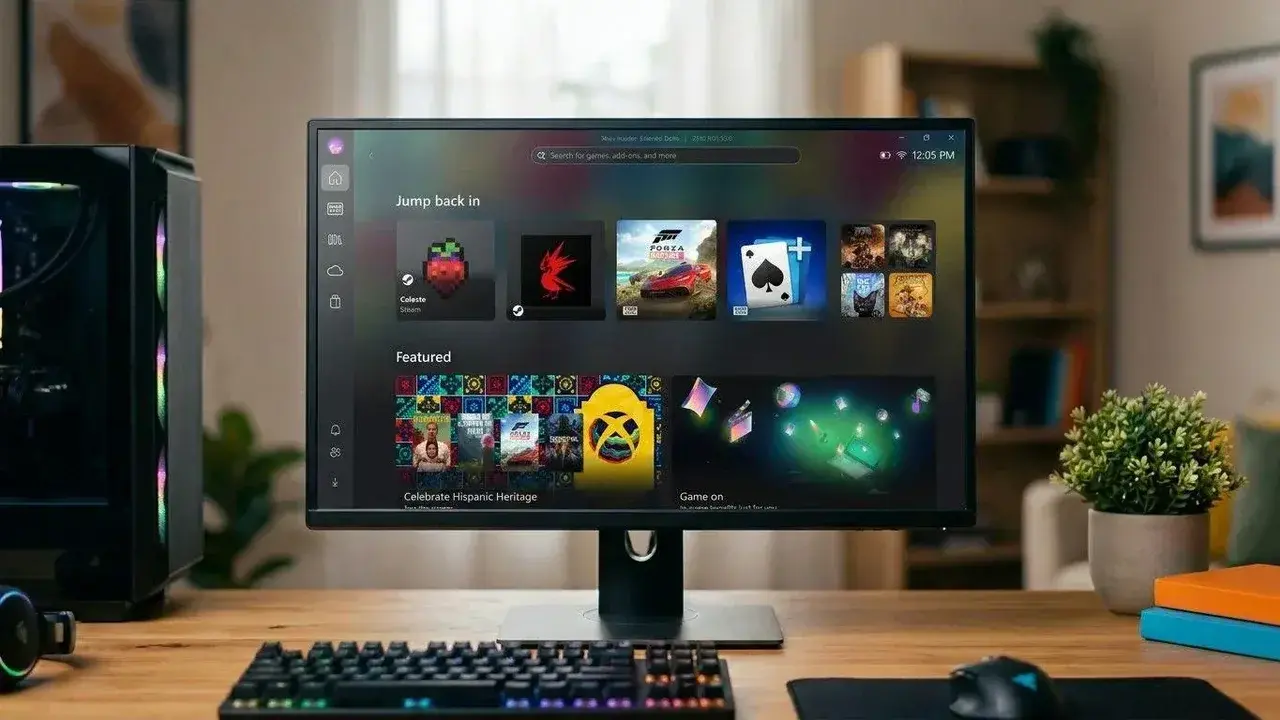
Microsoft has officially introduced the Windows 11 Xbox mode, a transformative feature designed to provide a controller-friendly, full-screen gaming interface for desktop, laptop, tablet, and handheld device users. Launched as part of the Windows 11 24H2 update and subsequent versions, this feature centralizes gaming libraries by consolidating titles from various digital storefronts into one unified dashboard. By prioritizing the gaming experience over the standard desktop environment, this mode simplifies navigation for users who prefer using game controllers. The rollout, which began in April 2026, aims to optimize system resources and streamline the interface for a more immersive gaming experience across all Windows-compatible hardware.
- The Windows 11 Xbox mode requires the 24H2 update or newer to function on compatible hardware.
- Users can toggle the interface using the Win + F11 keyboard shortcut for quick access.
- The feature integrates games from Steam, Epic Games, and other platforms into a single, controller-navigable library.
- Handheld devices benefit from reduced background processes to improve overall performance and battery efficiency.
How the Xbox Mode Can Be Activated and Used
Activating this feature is straightforward for users running the required software version. To manually enable the experience, navigate to the Settings menu, select Gaming, and then locate the dedicated Xbox mode section. Once enabled, the system shifts from a traditional desktop layout to a streamlined, lean-back interface. 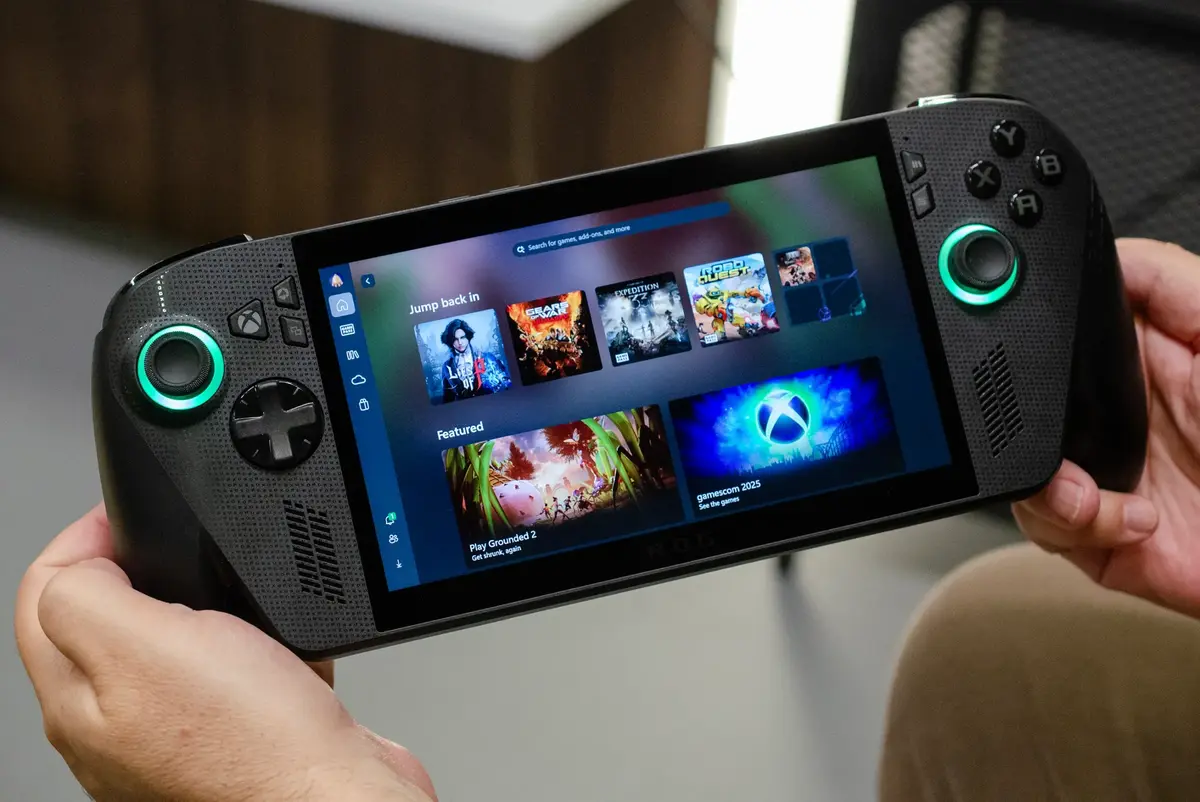 For those who prefer efficiency, the Win + F11 keyboard shortcut serves as the primary toggle to switch between the standard desktop and the gaming-focused environment. Alternatively, users can initiate this view through the Game Bar using the Win + G shortcut or via the Task View menu.
Once the mode is active, the taskbar and desktop icons disappear, replaced by an interface fully optimized for game controllers. Although the system is designed for gamepad navigation, keyboard and mouse support remains fully functional. Multitasking is handled through the familiar Win + Tab command, and holding the Xbox button on a controller opens the Task View to facilitate seamless switching between active applications. When a specific app is launched, the system automatically prioritizes full-screen mode, displaying windows individually to maintain focus.
How the Unified Game Library Improves Performance
The core advantage of this update lies in its ability to aggregate games from multiple platforms, including Steam, Battle.net, and Ubisoft Connect, under one roof. If a title is not automatically detected, it can be added manually via the plus button in the Library tab. 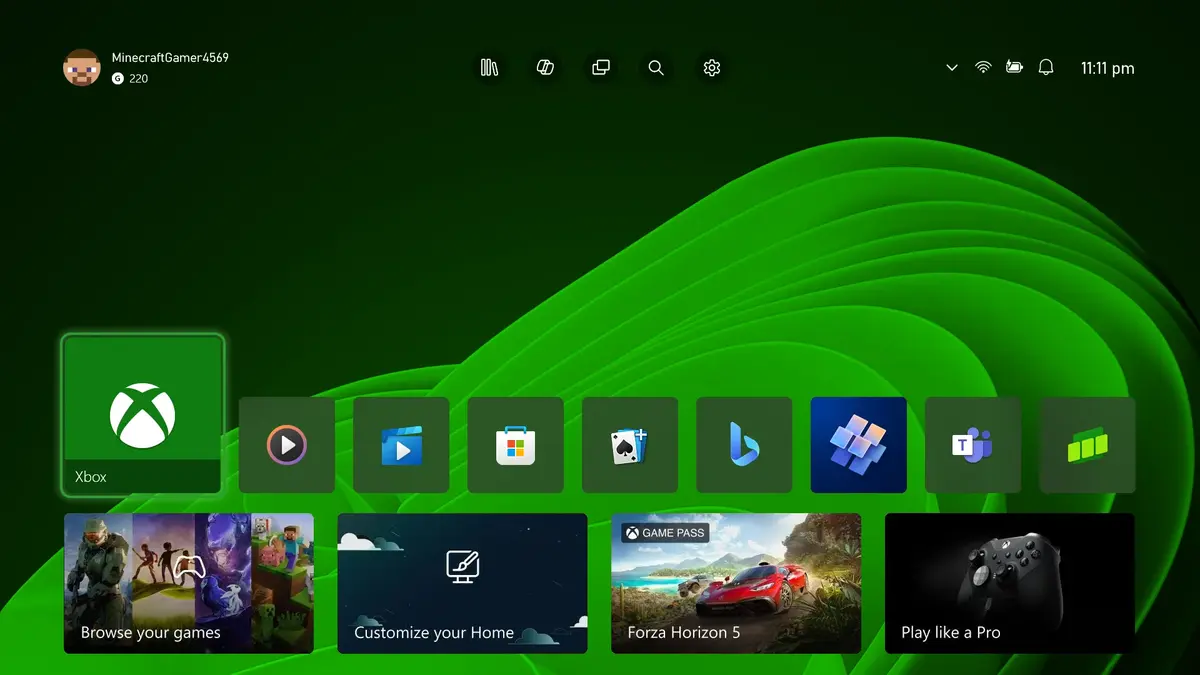 Whenever a third-party game is launched, the system automatically runs the necessary client in the background, ensuring a smooth transition for the player.
Cloud gaming capabilities have also been expanded beyond the default Xbox Cloud Gaming service. Users now have the flexibility to set NVIDIA GeForce NOW as their primary cloud provider through the settings menu. Furthermore, for those using handheld gaming PCs, the system offers specific optimizations. By restricting background apps upon startup, the operating system ensures that hardware resources are dedicated entirely to the game. Users can further customize these startup behaviors in the Apps section of the Settings menu, effectively transforming a multi-purpose computer into a dedicated gaming console.
We are curious to hear your thoughts on how this full-screen integration changes your daily gaming habits; do you think this shift makes Windows 11 a viable competitor to dedicated console operating systems? Please share your experiences and suggestions in the comments section below.
Your comment has been submitted,
it will be published after approval.