
Windows 11 KB5127936 Update Allows Customizing Right-Click Menu

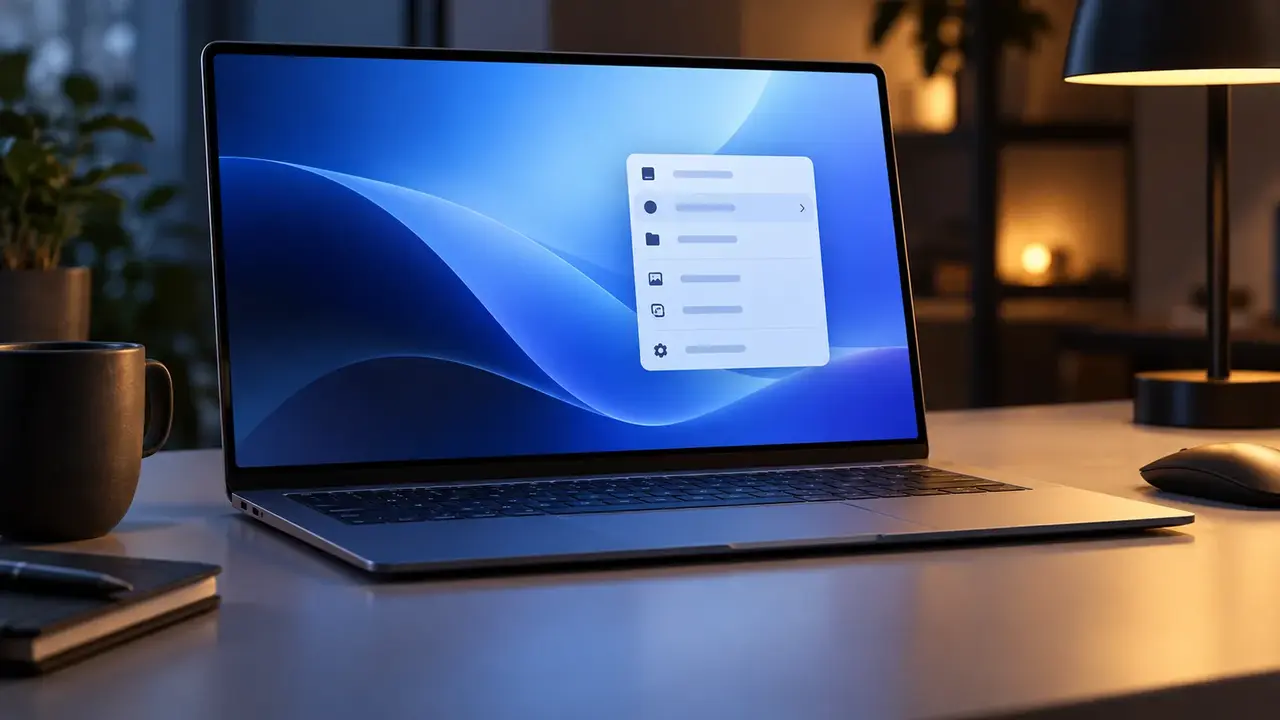
Microsoft released the Windows 11 KB5127936 update on October 28 as an optional preview for users on versions 26H2 and 25H2. This release, identified by build numbers 26300.9818 and 26200.9818, introduces a highly anticipated feature: a customizable and faster right-click context menu. Described as “production quality” by the tech giant, this update aims to streamline the user experience by allowing individuals to tailor their desktop interactions. While it lacks security patches, it serves as a significant functional enhancement for the operating system, bringing several Insider-tested features to the stable branch of Windows 11.
- Microsoft introduced a customizable right-click menu that allows users to toggle specific commands and icons.
- The Cloud Rebuild feature enables system reinstallation directly through Windows Update without external media.
- File Explorer received visual and functional updates including dark mode support for folder options.
- The update includes various bug fixes for AMD graphics cards and Remote Desktop connections.
Context Menu Customization Options Are Expanding
The core highlight of the Windows 11 KB5127936 update is the overhaul of the right-click context menu. After months of testing in the Insider program, Microsoft is finally allowing stable version users to personalize this essential interface component. The new menu is engineered to open significantly faster and presents a cleaner aesthetic by reducing unnecessary clutter. A new “Customize menu” option has been added to the bottom of the context menu, which directs users to a dedicated settings page.
Through this settings interface, users can toggle built-in commands such as “Send to” and “Create shortcut” on or off. It also allows for the addition of frequently used functions like “Print” directly to the main menu. Furthermore, users can now choose whether application extensions appear in the main menu or a sub-menu, or hide sub-menus entirely. For those who prefer classic text labels over modern icons, the update provides an option to display Cut, Copy, Paste, Rename, Delete, and Share as standard menu lines. The “Properties” option can also be moved to the very bottom for better accessibility.
File Explorer and Xbox Mode Receive Significant Enhancements
File Explorer has undergone several refinements to improve navigation and visual consistency. Search results within the application now follow a uniform layout that clearly displays file names, locations, and modification dates. A notable functional addition is the support for the “~” symbol in the address bar. This allows users to navigate directly to specific directories within their user profile, such as typing “~\AppData” to jump straight to that folder. Additionally, the legacy Folder Options window finally supports dark mode, ensuring it matches the rest of the modern Windows 11 environment.
For the gaming community, the Xbox mode features a refreshed Game Task View. A new navigation bar has been implemented to provide quick access to power options and allows players to return to the desktop seamlessly during active gameplay sessions. Microsoft noted that these specific gaming features are being deployed gradually and might arrive at different times depending on the specific hardware and regional market.
Cloud Rebuild Simplifies the Windows Reinstallation Process
The Windows 11 KB5127936 update introduces the “Cloud Rebuild” feature, which represents a major shift in how users can recover or refresh their systems. Instead of requiring a physical USB drive or a pre-downloaded ISO image, the operating system can now reinstall itself using system files and drivers fetched directly from Windows Update. This process is particularly useful when the OS fails to boot, as it can be initiated from the Windows Recovery Environment.
Located under Settings > System > Recovery as the “Rebuild PC” option, the process gives users the choice to keep their personal files or perform a secure wipe of the entire drive. Microsoft highlights that the secure cleaning process is irreversible and designed for maximum data privacy when resetting a device. This cloud-based approach ensures that the reinstalled system is up-to-date with the latest official drivers and patches from the start.
Performance Tweaks and Bug Fixes Improve System Stability
Beyond the major features, the update brings several smaller improvements across the system. The AutoPlay window, which triggers when connecting external devices like cameras or USB sticks, has been modernized with a new design and dark mode support. Magnifier users now have more flexibility with independent zoom levels for different monitors and a new contrast theme to reduce screen glare. Privacy settings have also been consolidated, grouping camera, microphone, and location permissions onto a single page for easier management.
Performance-wise, Microsoft Edge now launches faster from links and the taskbar when running in the background, provided users are on version 150 or higher. Battery management logic has been optimized to adjust hibernation triggers based on the remaining charge level to prevent data loss. Additionally, critical bugs have been addressed, including audio issues on certain AMD graphics cards using HDMI or DisplayPort and errors that prevented Smart App Control from being re-enabled.
Users Can Install the Optional Update via Settings
Since KB5127936 is an optional preview update, it will not download or install automatically on most systems. To access these features, users must navigate to Settings > Windows Update and ensure the toggle for receiving the latest updates as soon as they are available is turned on. Microsoft emphasizes that the rollout of these features is phased, meaning some users might not see every new functionality immediately after the installation is complete.
Users who prefer to wait for fully verified stability can skip this preview, as these features will likely be included in the next mandatory monthly security update. It is also important to note that Microsoft has ended support for Home and Pro versions of Windows 11 24H2 regarding these specific updates. Users can verify their current version by checking the “About” section in System Settings to ensure compatibility.
What do you think about the new right-click menu customization options in Windows 11? Share your thoughts on whether these changes make the operating system easier to use in the comments section below.
Your comment has been submitted,
it will be published after approval.