
How to block ads on Android?


On Android phones, pop-up ads can disrupt your user experience while browsing the web, watching videos, or playing games. Fortunately, it’s possible to block ads without rooting your device. This process not only clears the clutter on your screen but also saves you money on your internet data, makes pages load faster, and extends your battery life.
Blocking ads with third-party apps
If you want a simple solution and an easy interface, you can use the AdGuard app. The AdGuard app filters all internet traffic by creating a local VPN network on your device. Once you install and activate the app, it also blocks trackers and malware on websites through HTTPS filtering.
Since the AdGuard app is paid, this method will incur additional costs. Furthermore, because it’s constantly running in the background, it can significantly decrease your battery life.
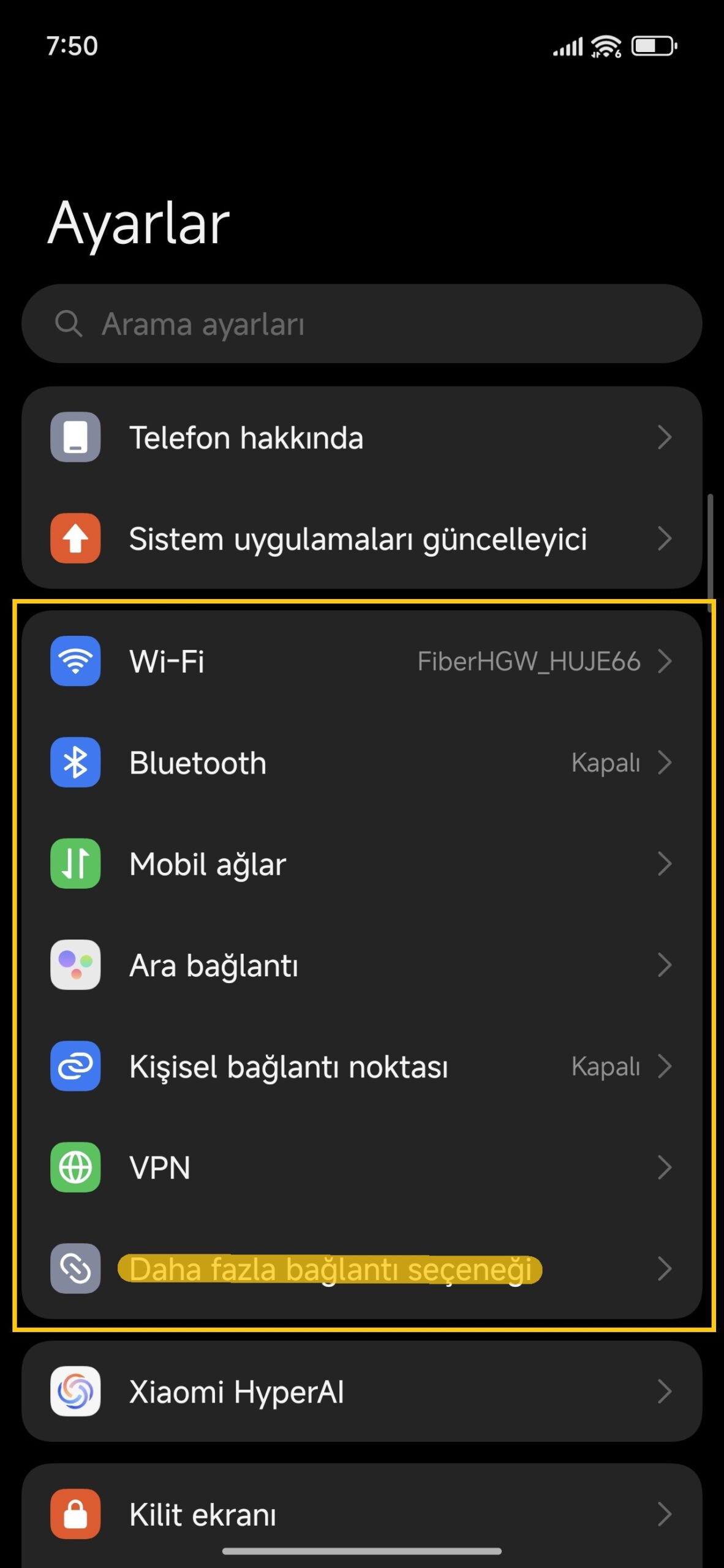
If you’re looking for a more comprehensive solution and don’t want to strain your phone, you can use a DNS server. The most practical, free, and app-free way to get rid of ads is to use the Private DNS feature, available on Android 9 and above. This method automatically filters many ads system-wide. While the location of these settings varies from manufacturer to manufacturer, you can block them by following roughly the same steps.
- Open your phone’s Settings menu.
- Tap the Connections or Network & Internet tab (the menu name may differ slightly on brands like Samsung, Xiaomi, or Oppo).
- Locate and click the Private DNS option, usually located under “Other Connection Settings.”
- On the screen that opens, select the “Private DNS provider hostname” option.
- Enter dns.adguard.com in the text box below and click the Save button.
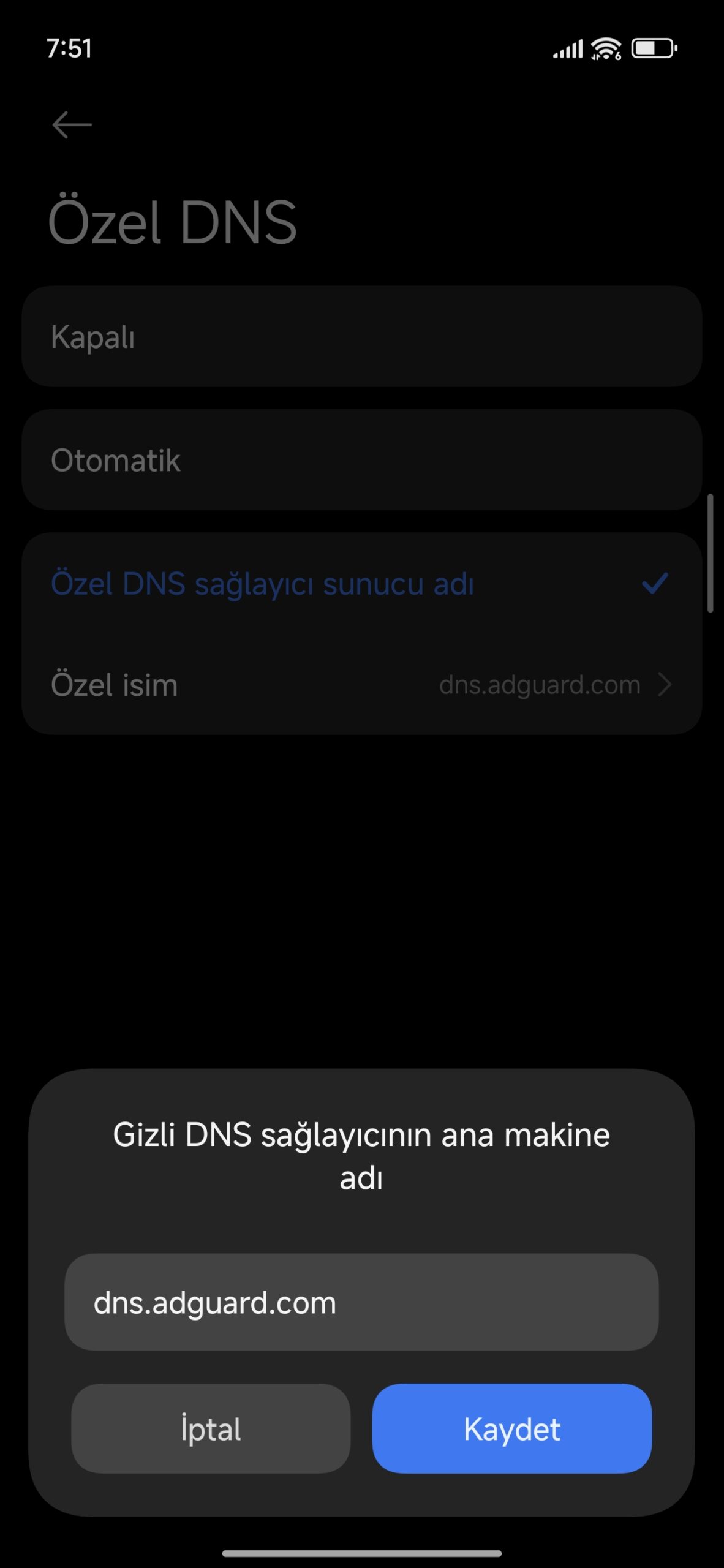
After this process, your phone will redirect internet traffic through AdGuard servers, blocking ad requests before they reach your device.
Blocking ads not only increases device security but also makes it easier to focus. So, which method do you prefer to avoid ads in daily use? Is the DNS setting alone sufficient for you? Share your experiences in the comments.
Your comment has been submitted,
it will be published after approval.