
How to Enlarge Your iPhone Keyboard Effectively

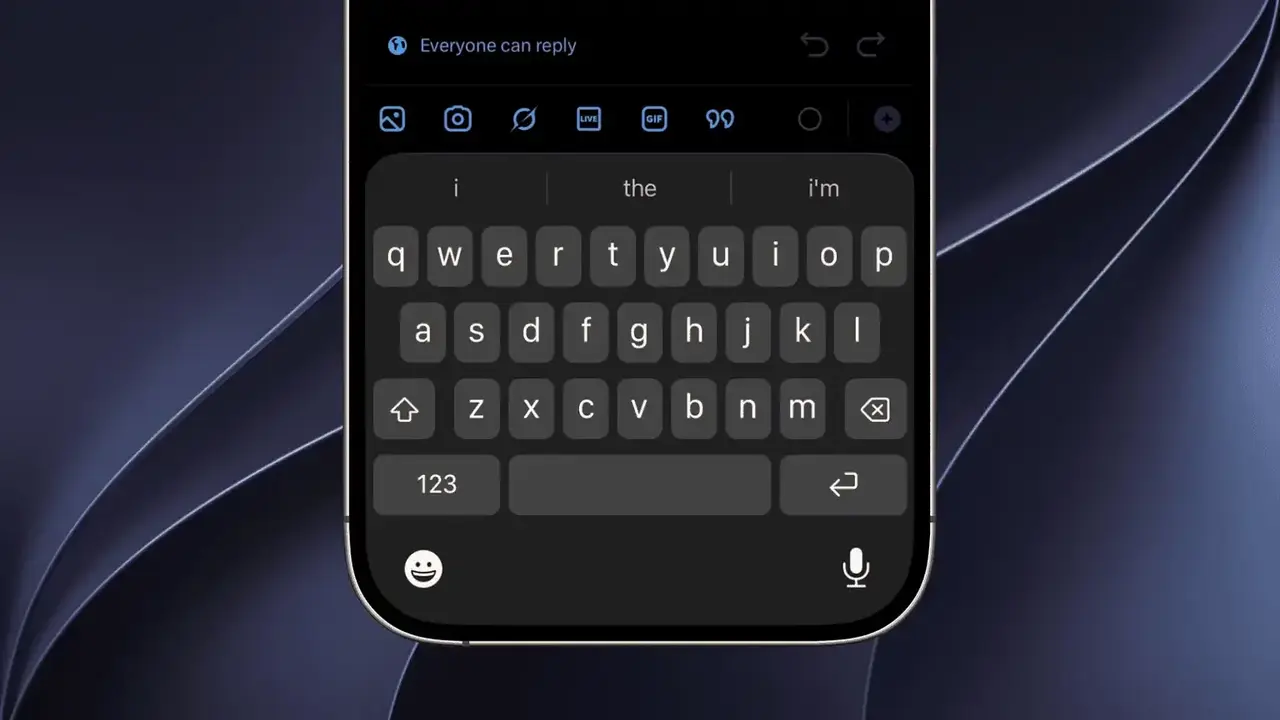
For many iPhone users, the default keyboard size can be challenging to navigate, leading to frequent typing errors or visibility issues. While Apple does not provide a specific setting to manually resize the keyboard interface individually, users can employ system-wide display adjustments to achieve an iPhone keyboard enlargement effect. By modifying the device’s Display Zoom or text size configurations, users can significantly improve their typing experience. These adjustments are particularly beneficial for those who struggle with small UI elements, as they allow for a more comfortable and accessible interaction with the iOS interface across various applications.
- System-wide Display Zoom settings increase the size of all user interface elements including the keyboard.
- Adjusting the Dynamic Type settings improves the legibility of text displayed within the keyboard layout.
- Rotating the device to landscape mode provides a wider surface area for more accurate typing.
- Third-party keyboard applications offer alternative layouts and customization options for users requiring specific visual modifications.
How Display Zoom Settings Increase Keyboard Size
Since iOS does not offer a dedicated toggle for independent keyboard resizing, the most effective method involves the Display Zoom feature. This setting modifies the overall magnification of the screen, causing text, icons, and the keyboard itself to appear larger. To activate this, navigate to the Settings menu and select the Display & Brightness section. Within this menu, locate the Display Zoom option and select the ‘Larger Text’ or ‘Zoomed’ configuration. Once applied, the device will adjust its resolution to render elements in a larger format, which directly impacts the physical footprint of the virtual keyboard.

Why Text Size Configurations Improve Legibility
If the primary concern is the clarity of the letters on the keys rather than the physical size of the keyboard itself, modifying the Dynamic Type settings is an appropriate approach. By increasing the system font size, users can make the characters on the keyboard easier to identify at a glance. You can access these controls by going to Settings, followed by Display & Brightness, and then selecting Text Size. Moving the slider toward the right will enlarge the system font. Please note that while this method significantly improves readability, it does not always expand the physical dimensions of the touch-sensitive keys themselves.
How Alternative Methods Provide More Space
Users who require an even larger typing surface might consider rotating their device into landscape mode. This orientation forces the keyboard to expand horizontally, providing more space between individual keys and reducing the likelihood of accidental presses. Furthermore, for those who find the standard iOS keyboard insufficient despite these system adjustments, the App Store provides various third-party keyboard applications. These alternatives often feature specialized designs, high-contrast themes, or adjustable layouts that may better suit individual accessibility requirements. However, users should always vet third-party developers carefully and review requested permissions to ensure data privacy and device security remain protected.
Have you found a specific setting or third-party app that makes typing on your iPhone more comfortable, or do you have any other tips to share with our community? Please leave a comment below to let us know your experiences.
Your comment has been submitted,
it will be published after approval.