
How to Open the On-Screen Keyboard Using Simple Shortcuts


When physical hardware fails or becomes unavailable, users can quickly launch the Windows on-screen keyboard to maintain productivity. This built-in accessibility tool allows individuals to input text using only a computer mouse, serving as a reliable backup for typing needs. Whether you are dealing with a broken peripheral or a specialized hardware limitation, accessing the virtual interface takes only a few seconds through various system commands. By mastering the on-screen keyboard shortcut, you can restore your ability to type immediately without needing to navigate through complex menus or settings during critical work tasks.
- The primary keyboard shortcut for launching the digital interface consists of pressing Windows, Ctrl, and O simultaneously.
- Users can execute the command ‘osk’ within the Run dialog box to initialize the program instantly.
- The application remains accessible through the system settings menu under the accessibility category for users who prefer a graphical interface.
- Pinning the application to the taskbar provides a permanent solution for rapid access in emergency situations.
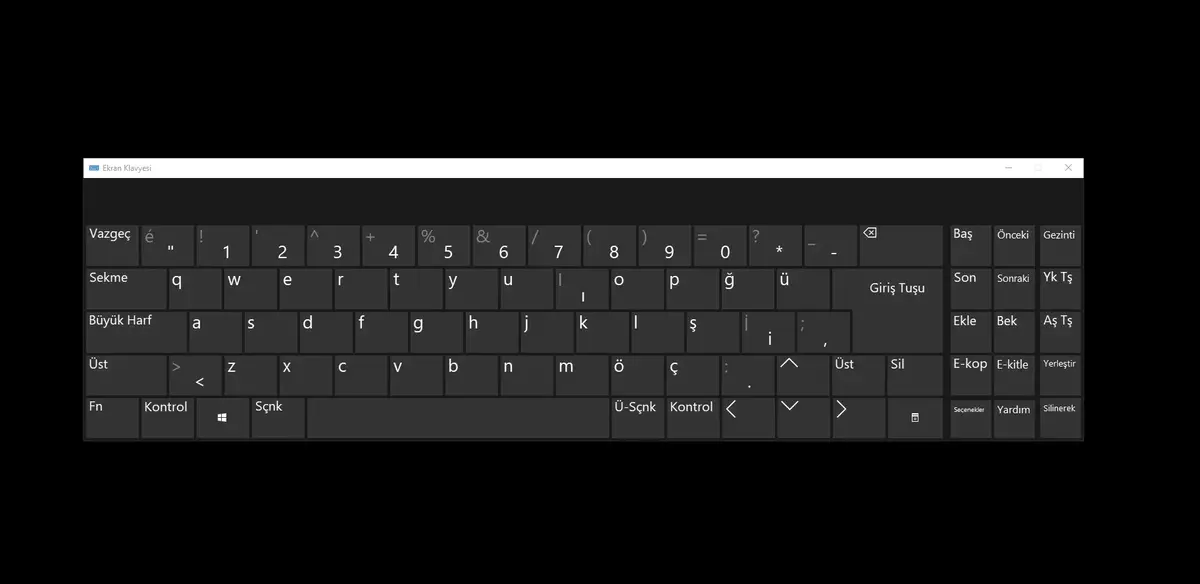
Keyboard Shortcuts Provide Instant Access
For most Windows users, utilizing a keyboard shortcut is the most efficient method for activating the on-screen utility. By simultaneously pressing the Windows key, the Control key, and the letter O, the virtual keyboard will appear on the desktop immediately. This same combination serves as a toggle mechanism, allowing the user to close the window just as easily once the task is finished. This method is particularly useful when the physical hardware is non-responsive or when a user is working in a touch-screen environment.
The Run Command Executes the Application Quickly
If you prefer using technical system commands, the Run dialog box offers a swift alternative to standard navigation. By pressing the Windows key and the letter R, a small window appears on the screen. Typing ‘osk’ into the prompt and pressing Enter triggers the operating system to launch the on-screen keyboard application. This command-line approach is often favored by power users who want to avoid navigating through multiple layers of system menus when time is a critical factor.
System Menus Offer Alternative Navigation Paths
For those who prefer a mouse-driven approach, the Start menu provides a straightforward path to the utility. By simply opening the search bar and typing the name of the feature, the system will highlight the relevant application for immediate use. Furthermore, users can navigate to the Settings menu, proceed to the Accessibility section, and select the Keyboard option to find the toggle for the virtual layout. This path is ideal for users who are not comfortable with keyboard shortcuts or command prompts.
Long-Term Stability Requires Proper Configuration
Relying on commands every time you need the virtual keyboard can be cumbersome. To ensure future ease of access, it is recommended to pin the application to the taskbar. By right-clicking the icon while the keyboard is active, you can select the option to pin it permanently. This ensures that the tool is always one click away, regardless of the state of your physical hardware. Proactive configuration prevents downtime and ensures you remain prepared for any unexpected technical difficulties that may arise during your daily operations.
Have you ever experienced a sudden hardware failure that forced you to rely on the on-screen keyboard, or do you have a favorite shortcut that makes your workflow faster? Share your experiences and personal tips with other readers in the comments section below.
Your comment has been submitted,
it will be published after approval.