
How to Restart Your iPhone: A Comprehensive Troubleshooting Guide


Knowing how to perform an iPhone restart is an essential skill for every Apple user looking to resolve minor software glitches, application freezes, or sluggish performance. Whether you are using the latest flagship model or an older device, understanding the correct procedure for your specific hardware is vital to ensuring your phone remains responsive. This guide outlines the various methods available for rebooting your device, including button-based power cycles and software-driven shutdowns, ensuring you can quickly troubleshoot common system issues without the need for professional technical assistance or data loss.
- Performing a standard restart does not result in the loss of personal photos, videos, or installed applications.
- Hardware button combinations vary significantly depending on the specific model of the iPhone device.
- Forced restart procedures provide a solution when the touchscreen becomes unresponsive or the system freezes completely.
Different Models Require Specific Restart Procedures
The standard method for power-cycling an iPhone equipped with Face ID involves a simple sequence of button interactions. To initiate the shutdown process, press and hold either the volume up or volume down button simultaneously with the side button. Once the power-off slider appears on the display, release the buttons and drag the slider to the right. After the screen turns black, allow the device to remain off for a few seconds before holding the side button again until the Apple logo appears. 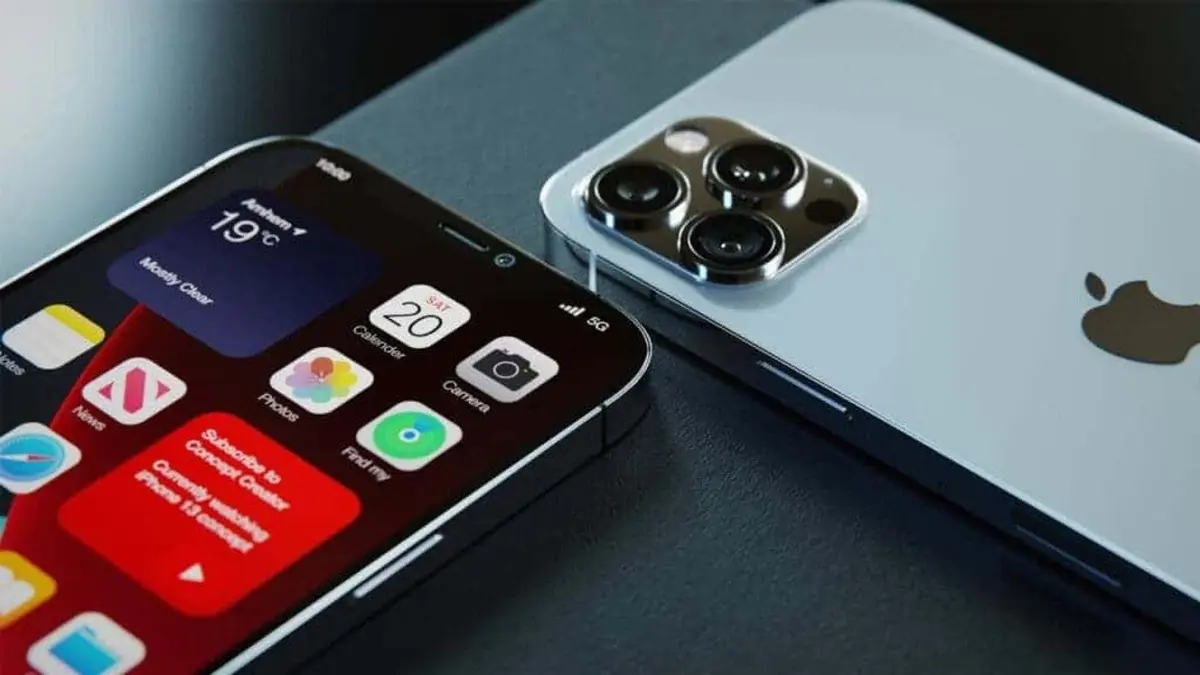
Settings Menu Allows for Software Shutdowns
Users can effectively power down their devices without relying on physical buttons by navigating through the iOS interface. By accessing the Settings application and selecting the General tab, you will find the Shut Down option located at the very bottom of the menu. Selecting this choice triggers the standard power-off slider. This method serves as a convenient alternative for individuals who may have difficulty using physical buttons or prefer a software-based approach to managing their device power state.
Forced Restarts Resolve Critical System Freezes
When an iPhone becomes unresponsive, the screen freezes, or touch inputs fail to register, a standard restart may not be feasible. In these instances, a forced restart is required to bypass the standard operating system sequence. To perform this action, quickly press and release the volume up button, followed by the volume down button, and finally hold the side button until the Apple logo appears on the screen. This process interrupts the frozen system state and forces a fresh boot. It is important to note that this procedure is safe and does not delete your personal data; it merely serves as an emergency intervention to restore system functionality.
Have you ever encountered a situation where your iPhone became completely unresponsive? Share your experiences and any additional troubleshooting tips you have discovered in the comments section below to help other users.
Your comment has been submitted,
it will be published after approval.