
How to Optimize Google Maps Navigation

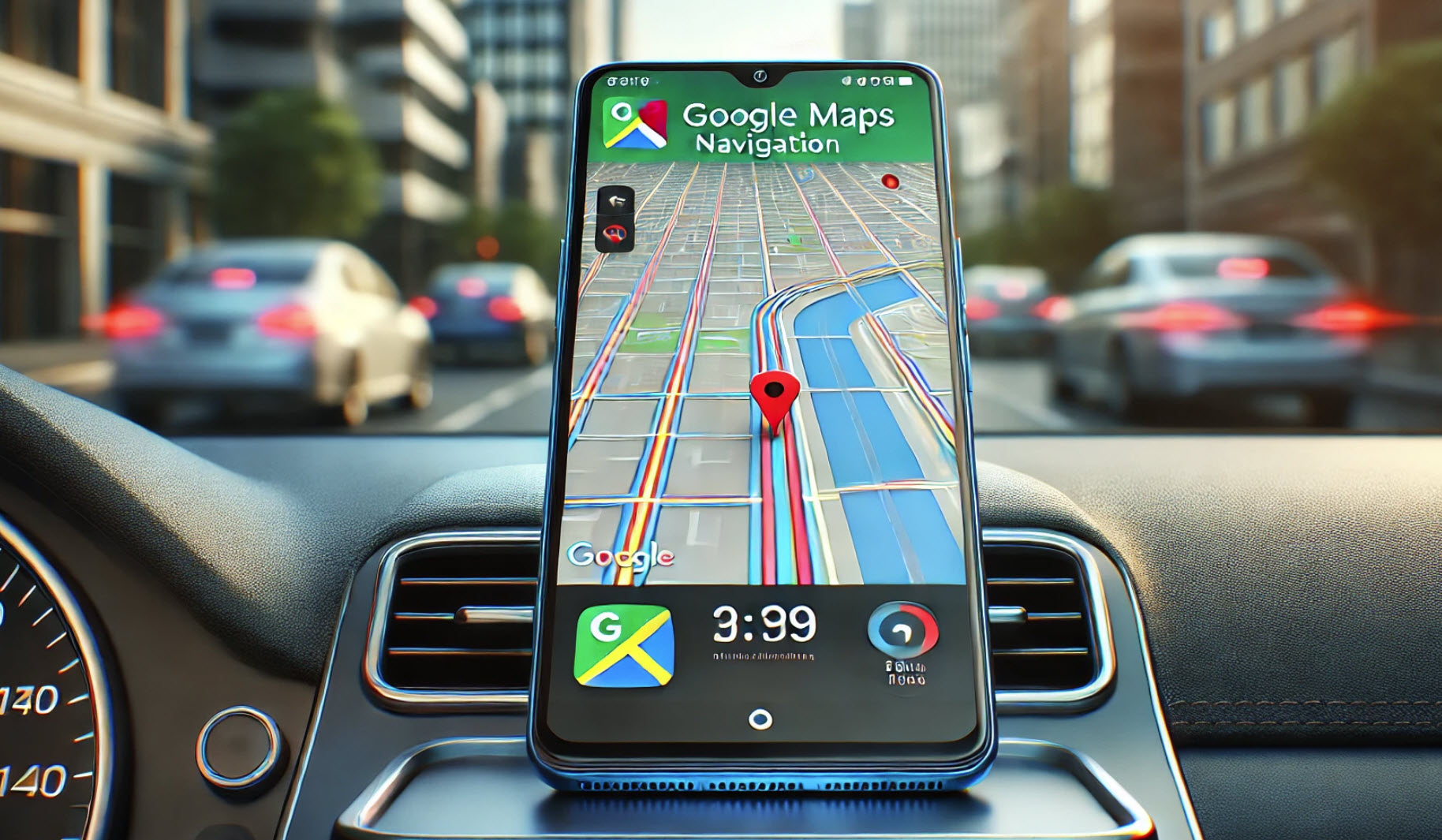
Enhancing your experience with Google Maps Navigation can be achieved by optimizing your device’s location accuracy. Accurate location data ensures precise directions and a smoother navigation experience. Follow these steps to improve location accuracy on your Android device:
1. Enable High-Accuracy Mode:
High-accuracy mode utilizes GPS, Wi-Fi, Bluetooth, and mobile networks to determine your location with the highest precision.
- Steps to Enable:
- Open your device’s Settings.
- Navigate to Location.
- Ensure that Location is toggled On.
- Tap on Mode or Location Mode.
- Select High accuracy.
2. Calibrate Your Compass:
Calibrating your device’s compass can enhance the accuracy of your location and the direction you’re facing.
- Steps to Calibrate:
- Open the Google Maps app.
- Move your device in a figure-eight motion until the compass is calibrated.
- A message will confirm when the calibration is complete.
3. Update Google Maps:
Keeping the Google Maps app updated ensures you have the latest features and improvements, which can enhance location accuracy.
- Steps to Update:
- Open the Google Play Store.
- Tap on your profile icon and select Manage apps & device.
- Find Google Maps and tap Update if available.
4. Check Your Internet Connection:
A stable internet connection is crucial for accurate location tracking.
- Tips:
- Ensure you’re connected to a reliable Wi-Fi network or have a strong mobile data signal.
- Avoid using Google Maps in areas with poor connectivity.
5. Restart Your Device:
Sometimes, simply restarting your device can resolve location accuracy issues.
- Steps to Restart:
- Press and hold the Power button.
- Tap Restart.
5 new Apple Maps features coming with iOS 18!
By following these steps, you can enhance the accuracy of Google Maps Navigation on your Android device, leading to more reliable directions and a better overall experience.
Your comment has been submitted,
it will be published after approval.