
How to Remove the Windows Activation Watermark: 2 Effective Methods

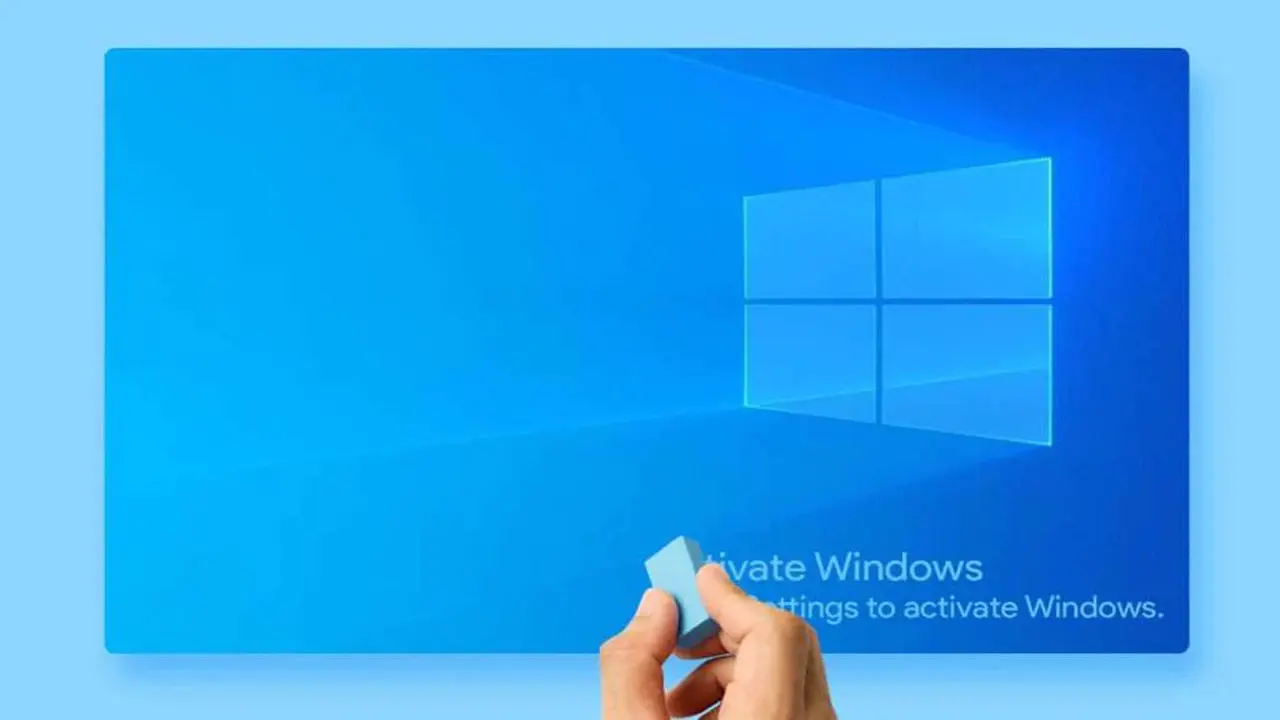
The persistent “Activate Windows” watermark, a common nuisance for users, appears in the bottom-right corner of the screen when the operating system is not properly licensed. This prominent notification serves as a constant reminder that the Windows license is currently inactive, often distracting from everyday computer usage. For those seeking to eliminate this bothersome message, there are primarily two distinct approaches available to remove the Windows activation watermark: either ensuring the operating system is legitimately activated with a valid product key or employing a temporary command-line solution to temporarily hide it.
- The “Activate Windows” watermark indicates an unactivated operating system, appearing in the screen’s lower-right corner.
- The most secure and permanent solution involves activating Windows with an official, valid product license.
- A temporary method to hide the watermark is available through the Command Prompt using the
slmgr /rearmcommand, requiring a system restart. - Third-party activation programs are discouraged due to potential security risks and legal implications.
Why the “Activate Windows” Watermark Appears
The “Activate Windows” watermark is an alert message displayed by Microsoft Windows when the operating system has not been activated with a legitimate product key. This can occur for several reasons, including installing a fresh copy of Windows without entering a key, using an expired trial version, or significant hardware changes to your computer that invalidate the existing license. While Windows remains functional to a certain extent without activation, the watermark is a constant visual reminder and some personalization features may be restricted.
Windows Activation Provides the Most Reliable Solution
The most permanent, secure, and recommended method to remove the “Activate Windows” watermark is to activate your operating system with a valid product key. This ensures you have a genuine license, granting you full access to all Windows features, security updates, and support. Activating Windows guarantees system stability and protects your computer from potential vulnerabilities associated with unofficial activation methods. Always ensure your product key is original and obtained through legitimate channels.
Checking Your Windows Activation Status is Essential
Before attempting any removal methods, it is crucial to verify your current Windows activation status. This step helps in understanding whether your system is genuinely unactivated or if there’s merely a temporary display issue. Knowing your status guides you towards the appropriate solution, whether it’s entering a new product key or troubleshooting an existing license.
Activating Windows Permanently Removes the Watermark
To permanently remove the activation watermark by activating your Windows operating system, follow these steps. This process typically takes only a few minutes and relies on you having a legitimate product key ready.
- Open the Settings application on your computer.
- If you are using Windows 11, navigate to System > Activation. For Windows 10 users, the path is Update & Security > Activation.
- Within the Activation section, you can review your current Windows activation status.
- If prompted, or if you have a new product key, click on the Change product key option.
- Enter your valid product key into the designated field and follow the on-screen instructions to complete the activation process.
Upon successful activation, the “Activate Windows” watermark in the bottom-right corner of your screen will disappear immediately. This is the most effective and secure way to resolve the issue permanently.
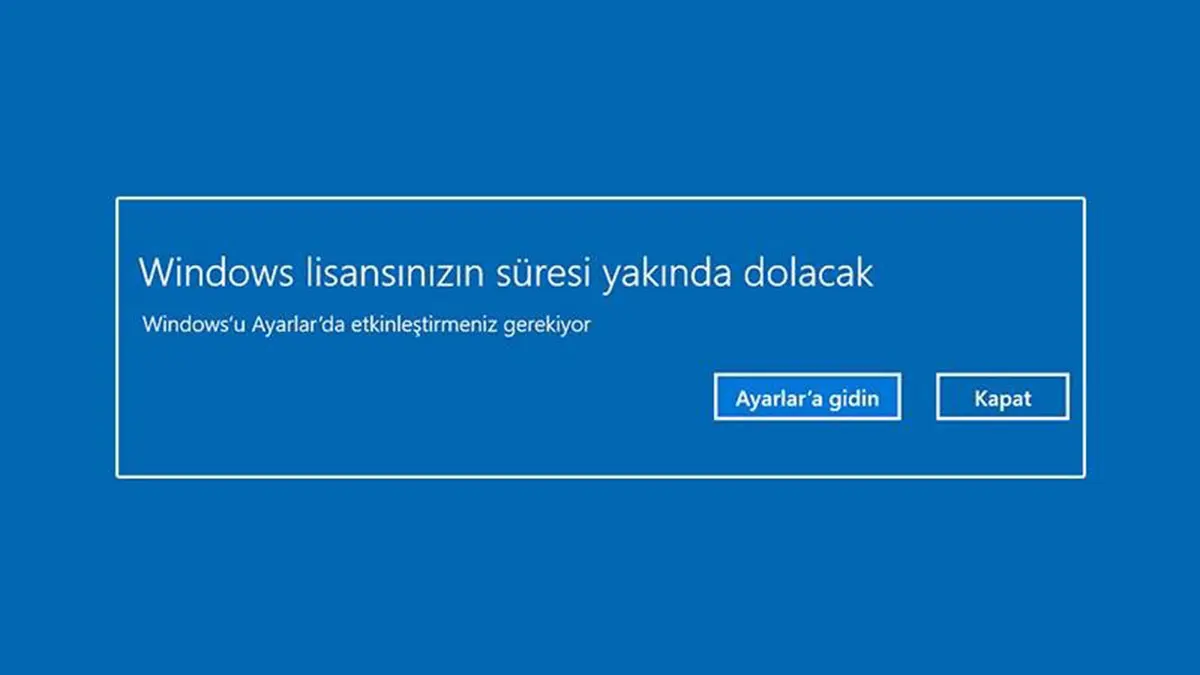
Beware: Third-Party Activation Tools Pose Risks
It is critically important to steer clear of third-party activation programs or cracks found on the internet. While these tools might promise to remove the activation watermark, they often carry significant risks. Using unofficial software can expose your system to malware, viruses, and other security threats, potentially compromising your personal data and system integrity. Furthermore, using such methods violates Microsoft’s terms of service and may lead to legal consequences or render your system unstable and unsupportable.
A Temporary Fix Can Hide the Watermark
If permanent activation is not immediately feasible, or if you require a temporary solution to hide the watermark for a short period, there is a command-line method you can employ. This method does not activate Windows but temporarily suppresses the watermark display. It is important to note that this is not a permanent fix, and the watermark will likely reappear after a certain period or system events.
- Type CMD into the Windows Start menu search bar.
- Right-click on “Command Prompt” from the search results and select Run as administrator.
- In the Command Prompt window that appears, type the command
slmgr /rearm. - Press Enter on your keyboard to execute the command.
- Finally, restart your computer for the changes to take effect.
Understanding the Limitations of the Temporary Method
After performing the slmgr /rearm command and restarting, the “Activate Windows” watermark should temporarily vanish from your screen. However, it is crucial to understand that this is a stop-gap measure. This command essentially resets the activation timer, giving you a grace period, but it does not provide a genuine license. The watermark will eventually reappear, at which point you will need to repeat the process or, ideally, proceed with legitimate Windows activation to ensure a lasting solution and full system functionality.
Have you successfully removed the ‘Activate Windows’ watermark using these methods, or do you have alternative solutions that proved effective for you? Share your experiences and tips in the comments below to help other users facing this common issue.
Your comment has been submitted,
it will be published after approval.