
Microsoft Streamlines Windows 11 Copilot Integration in File Explorer

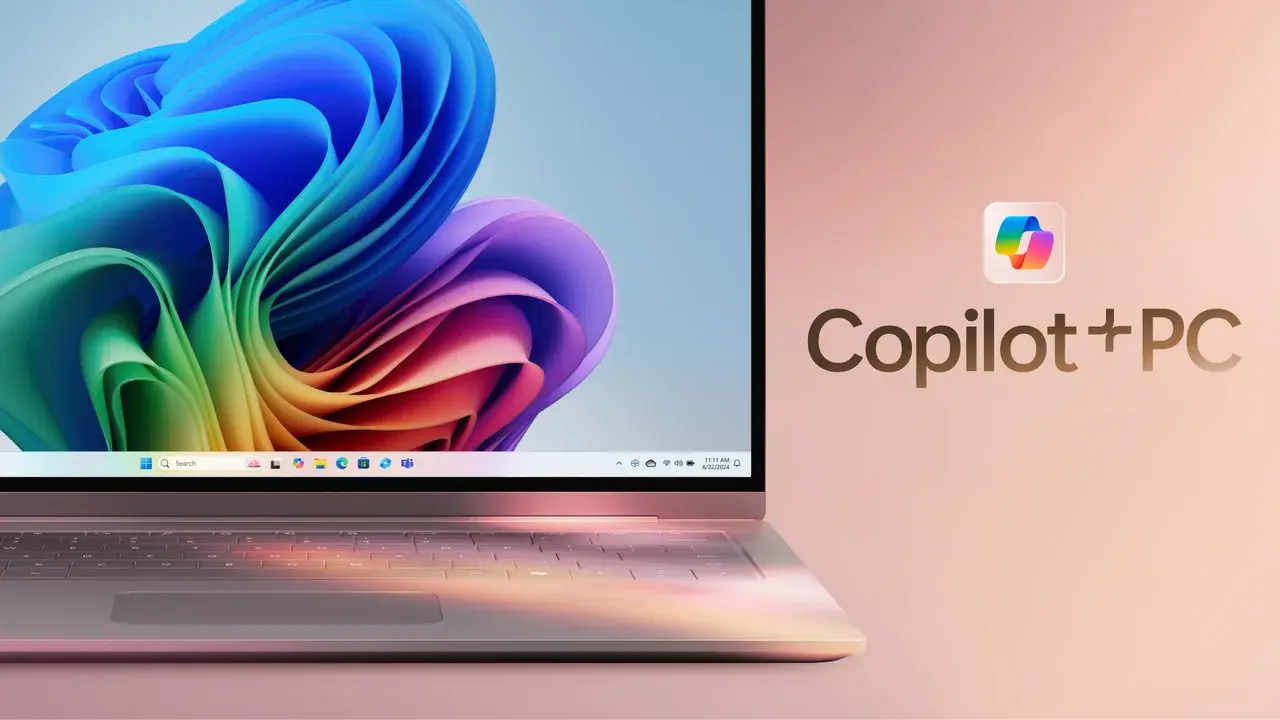
Microsoft has announced a significant update for Windows 11 that reduces the prominence of Copilot AI features within the operating system’s interface. Starting mid-November, the tech giant will remove several AI-driven shortcuts from the File Explorer right-click context menu, specifically those associated with OneDrive files. This strategic shift aims to declutter the user experience, making Windows 11 feel less intrusive while maintaining access to powerful artificial intelligence tools. By scaling back the mandatory visibility of these features, Microsoft is directly responding to user feedback regarding interface complexity and the need for a more streamlined desktop environment.
- Microsoft is removing eight specific AI-driven actions from the File Explorer right-click menu to simplify the user interface.
- The update affects OneDrive-related context menus, removing options such as file summarization and image comparison.
- Users will continue to access Copilot features through designated hub areas rather than the right-click menu.
- The rollout of this interface update will occur gradually for all Windows 11 users by mid-November.
Right-Click Menus are Being Simplified
Currently, when a user right-clicks on a file stored in OneDrive, the context menu is heavily populated with various AI-powered actions facilitated by Copilot. This includes options for generating FAQs, summarizing documents, and even comparing image files. Microsoft has decided that this approach creates unnecessary clutter for the average user, leading to a decision to remove these items from the primary navigation layer.
A total of eight distinct actions are being purged from the menu to create a cleaner, more efficient workspace. Beyond the standard file management tasks, features like text extraction and image description generation will no longer appear instantly upon right-clicking a file. This change is designed to minimize distractions for users who manage high volumes of files daily and require a responsive, straightforward interface to complete their tasks effectively.
Alternative Access Methods are Being Provided
Despite these changes, Microsoft maintains that these advanced tools are not disappearing from the ecosystem entirely. The company is shifting the accessibility of these AI features toward less intrusive locations within the operating system. Users will still find the “Ask Copilot” option available, and they can continue to utilize AI capabilities through the File Explorer Home section or the dedicated OneDrive activity center.
This transition represents a move toward a more modular approach to AI integration. Instead of forcing Copilot shortcuts into every corner of the file management system, Microsoft is positioning these tools as optional utilities. This allows power users to benefit from the technology while permitting others to enjoy a cleaner, more traditional desktop experience. The update, which is currently being distributed in stages, will reach the global user base by the middle of November.
Future Interface Changes are Being Considered
Industry experts are watching closely to see if this reduction in AI visibility will extend to other areas of the Windows 11 environment. While this current update focuses primarily on File Explorer and OneDrive, there is speculation that Microsoft may evaluate other system components for similar decluttering efforts in the future. As the company continues to refine its AI strategy, the balance between innovation and user convenience remains a primary focus for the development team.
We are curious to hear your perspective on these changes to the Windows 11 interface. Do you find that removing these AI shortcuts from the right-click menu improves your workflow, or did you rely on those quick-access features for your daily tasks? Please share your thoughts and experiences in the comments section below.
Your comment has been submitted,
it will be published after approval.