
How to Activate the Windows Key if it’s not working


Is your Windows key not working on your HyperX keyboard? This can often be caused by Game Mode being enabled. Game Mode disables the Windows key to prevent accidental interruptions while gaming. Follow these steps to deactivate Game Mode and restore the functionality of your Windows key.
Step 1: Identify the Game Mode Indicator
Before you begin, check if the Game Mode is active on your HyperX keyboard. Look for a Game Mode indicator light on your keyboard. This light is usually located near the top right or top center of the keyboard and is often marked with a game controller or a similar icon.
Step 2: Locate the FN and GAME Keys
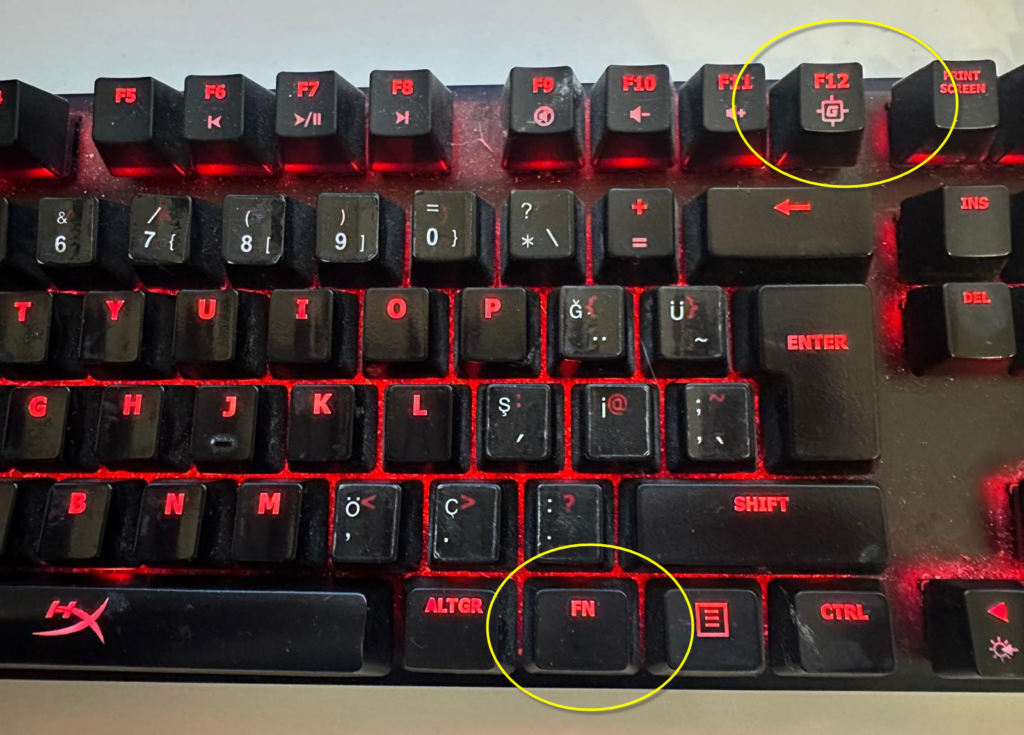
To turn off Game Mode, you need to locate the FN key and the GAME key on your keyboard.
- The
FNkey is typically located at the bottom row of the keyboard, near the right corner. - The
GAMEkey can vary in position depending on your HyperX keyboard model. It’s usually marked with a joystick, a game controller, or simply labeled asGame Mode.
Step 3: Deactivate Game Mode
Simultaneously press and hold the FN key and the GAME key for a few seconds.
- Press
FN+GAMEkeys together.
You should notice that the Game Mode indicator light turns off. This signifies that Game Mode has been deactivated.
Step 4: Test the Windows Key
After turning off Game Mode, test the Windows key to ensure it is functioning properly.
- Press the Windows key to see if it opens the Start Menu or activates any other Windows-related shortcut.
How to Create Dynamic Wallpapers for macOS
Troubleshooting Tips
- Ensure Proper Key Press: Make sure you are pressing the
FNandGAMEkeys simultaneously. If you press them too quickly or not at the same time, the mode may not change. - Check for Firmware Updates: Sometimes, updating the keyboard’s firmware can resolve issues. Visit the HyperX support website to check for any available firmware updates for your keyboard model.
- Restart Your Computer: Occasionally, a simple restart can resolve minor software glitches affecting keyboard functionality.
Additional Resources
For more detailed information or troubleshooting help, you can refer to the user manual that came with your HyperX keyboard or visit the HyperX Support page.
By following these steps, you should be able to deactivate Game Mode and restore the functionality of your Windows key on your HyperX keyboard. Enjoy seamless gaming and productivity without any interruptions!
Your comment has been submitted,
it will be published after approval.