
How does the iPhone 14 satellite connection work?

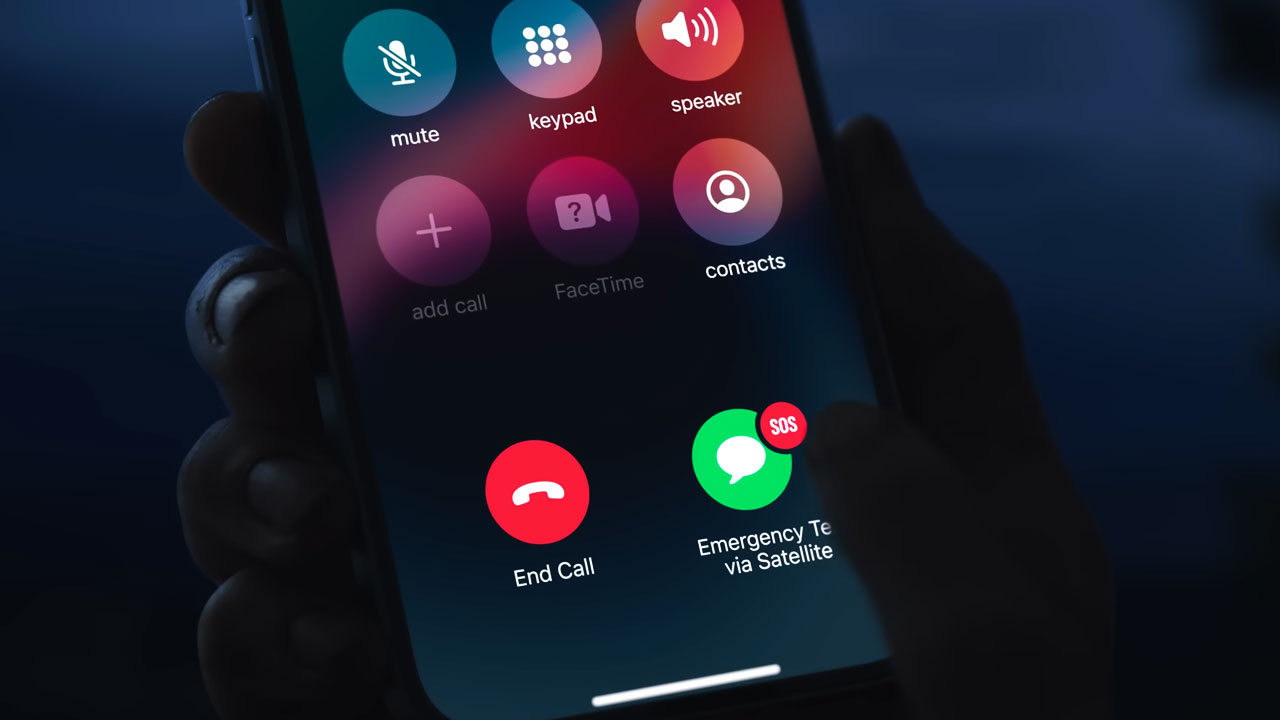
Apple finally launched its most expected devices, iPhone 14 series, Apple Watch Series 8, and AirPods 2nd Gen at its September event. Especially, iPhone 14 comes with many new features from security to hardware. Now, iPhone 14 supports satellite connectivity for the first time. Here are the details about iPhone 14 satellite connectivity and how it works.
iPhone 14 satellite connectivity for Emergency SOS
Apple brings some exciting and valuable new security and safety features with the new devices. However, the most distinguished of these is Emergency SOS via satellite connectivity. This feature lets users request help from anywhere in the world. The iPhone 14’s emergency SOS feature can work even when cellular networks are unavailable. So, it directly connects to the satellite for SOS.

Apple explains this feature, “Emergency SOS via satellite can help you connect with emergency services under exceptional circumstances when no other means of reaching emergency services are available. If you call or text emergency services and can’t connect because you’re outside the range of cellular and Wi-Fi coverage, your iPhone tries to connect you via satellite to the help that you need.” on its support page.
The satellite connectivity feature will be available only in the US and Canada starting in November at first. Apple announced that the new service will be free for two years for iPhone 14 owners. Then, there will be a cost to use satellite connectivity. However, the company didn’t announce the price of the service.

How to use Emergency SOS via satellite on iPhone 14
When you need to contact emergency services, you can easily connect your iPhone to a satellite for an Emergency SOS. Here are the tips:
- Hold your phone naturally in your hand. You don’t need to raise your arm or hold your iPhone up, but don’t put it in a pocket or backpack.
- Make sure that you’re outside with a clear view of the sky and the horizon.
- Be aware that trees with light foliage might slow down the connection, and dense foliage might block it. Hills or mountains, canyons, and tall structures can also block the connection.
- In case you need to turn left or right or move to avoid a blocked signal, your iPhone provides guidance—just follow the onscreen instructions.
- The satellite connection can be maintained even if your phone screen is locked.
Text emergency services via satellite
If you called services, but couldn’t reach them. You can also text emergency services via satellite on your iPhone 14.
- First, try calling emergency services. Even if your normal cellular carrier network isn’t available, you might to make the call.
- If your call won’t connect, you can text emergency services via satellite:
- Tap Emergency Text via Satellite.
- You can also go to Messages to text 911 or SOS, then tap Emergency Services.
- Tap Report Emergency.
- Using simple taps, answer the emergency questions to best describe your situation.
- You can also choose to notify your emergency contacts that you contacted emergency services, along with your location and the nature of your emergency.
- To connect to a satellite, follow the onscreen instructions.
- After you’re connected, continue following the onscreen instructions to stay connected while you send your message to emergency services.
You will also be able to share your critical information like your Medical ID and contact information, of course, you had to set them up earlier. Additionally, you can share the emergency questionnaire answers, your location, and the remaining battery life for your iPhone.

iPhone 14 specs
| iPhone 14 | iPhone 14 Plus | iPhone 14 Pro | iPhone 14 Pro Max | |
| Screen size | 6.1-inches | 6.7-inches | 6.1-inches | 6.7-inches |
| Refresh rate | 60Hz | 60Hz | 1-120Hz | 1-120Hz |
| CPU | Apple A15 Bionic | Apple A15 Bionic | Apple A16 Bionic | Apple A16 Bionic |
| Storage | 128GB, 256GB, 512GB | 128GB, 256GB, 512GB | 256GB, 512GB, 1TB | 256GB, 512GB, 1TB |
| Cameras | Dual 12MP (Wide, ultrawide) | Dual 12MP (Wide, ultrawide) | 48MP main, 12MP ultrawide, 12MP telephoto with 3x optical zoom | 48MP main, 12MP ultrawide, 12MP telephoto with 3x optical zoom |
| Size | 5.78 x 2.82 x 0.31 inches | 6.33 x 3.07 x 0.31 inches | 5.81 x 2.81 x 0.31 inches | 6.33 x 3.05 x 0.31 inches |
| Weight | 6.07 ounces | 7.16 ounces | 7.27 ounces | 8.47 ounces |
| Dust/Water resistance | IP68 | IP68 | IP68 | IP68 |
| Colors | Purple, blue, midnight, starlight and Product RED | Purple, blue, midnight, starlight and Product RED | Purple, gold, silver and space black | Purple, gold, silver and space black |
Your comment has been submitted,
it will be published after approval.